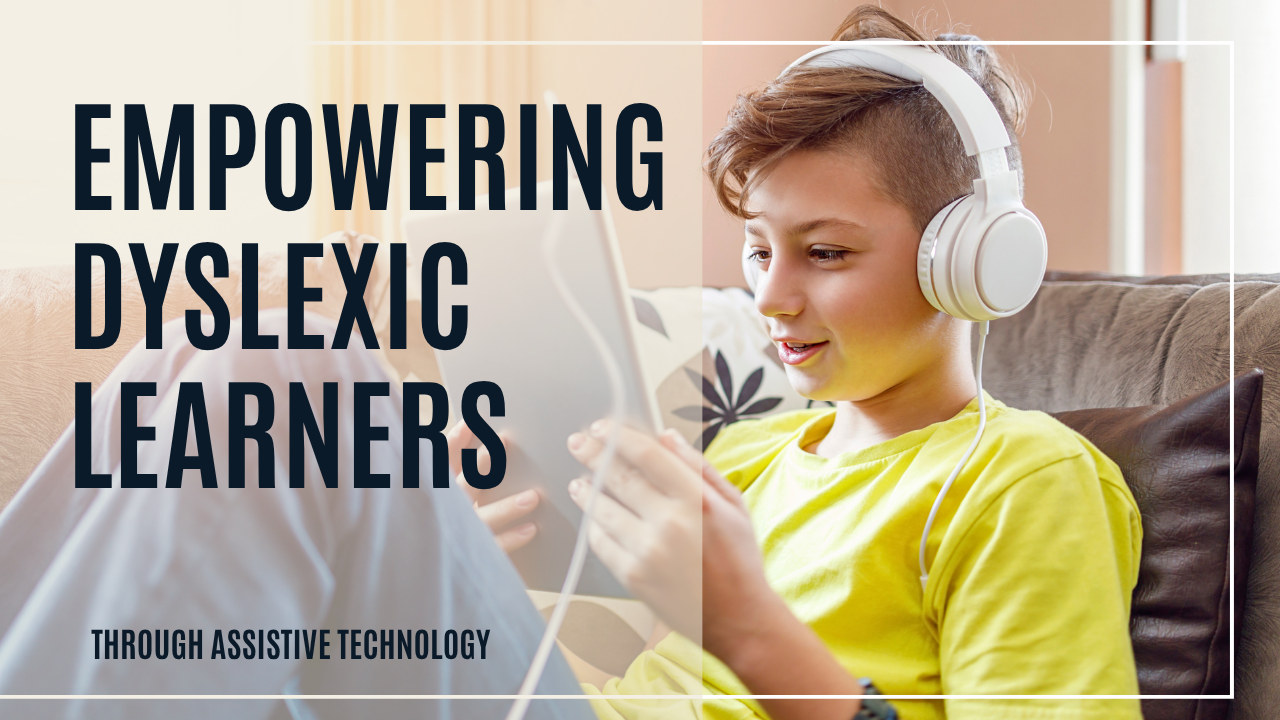
Assistive technology empowers dyslexic learners by removing the barriers that reading and writing put between your child and their actual thinking. A bright child who cannot yet decode fluently can still understand a complex story, write a strong paragraph, or finish a research assignment—if they have the right tools. Below is what assistive technology is, why it works, and the specific apps and software worth knowing about.
What is assistive technology for dyslexia?
Assistive technology is any tool, app, or software that helps a person work around a specific challenge—in this case, the reading, writing, and organizational difficulties that come with dyslexia. It ranges from free browser extensions to full educational platforms, and it works by shifting effort away from the skill your child struggles with so their brainpower can go toward understanding and expressing ideas.
These tools make the learning process more accessible and engaging. The field also moves quickly, so it is worth staying informed—new features and apps keep expanding what is possible for dyslexic learners at home and at school. A few categories cover most needs: tools that read text aloud, tools that turn speech into writing, tools that change how text looks, and tools that help with focus and organization.
It helps to think of assistive technology as a bridge rather than a crutch. Your child is fully capable of high-level thinking; the technology simply carries them over the gap that decoding creates so they can reach the ideas waiting on the other side. Used this way, these tools protect your child’s confidence and keep them engaged with rich material while their reading skills are still developing.
Why does assistive technology help dyslexic learners?
Dyslexia makes decoding—turning letters into sounds and words—slow and effortful. When so much energy goes into sounding out each word, there is little left for comprehension. Assistive technology breaks that bottleneck. Here is how the right tools help:
- Enhanced comprehension and fluency: Text-to-speech software converts written text into spoken words, so your child can follow along and understand material at their thinking level instead of their current decoding level.
- Independence: Speech-to-text software lets students get their thoughts onto the page without the spelling and handwriting struggle stopping them mid-sentence—which builds genuine self-reliance.
- Customization: Many tools let you adjust font, spacing, reading speed, and color, so each child can tailor the experience to what works for their eyes and brain.
To get the most out of these tools, collaborate with your child’s teachers and any technology specialists at the school. Working together, you can identify the tools that fit your child’s specific challenges and use them consistently in both the classroom and at home—which is when assistive technology helps the most.
What are the best assistive technology tools?
There is no single “best” tool—the right choice depends on your child’s biggest hurdle. Here is a curated list organized by what each category does.
Text-to-speech software reads text aloud so your child can listen instead of decode:
- NaturalReader — converts written text into spoken words.
- Kurzweil 3000 — an educational tool for reading, writing, and study support.
- Voice Dream Reader — a mobile app that reads documents and web pages aloud.
Speech-to-text software turns spoken words into written text so writing keeps pace with thinking:
- Dragon NaturallySpeaking — converts speech into typed text.
- Google Docs Voice Typing — a free voice-to-text tool built into Google Docs.
- Otter.ai — offers real-time transcription of spoken language.
Dyslexia-friendly fonts use weighted letter shapes to reduce visual confusion:
- OpenDyslexic — a free font designed to improve readability for dyslexic readers.
- Dyslexie Font — a typeface created specifically for people with dyslexia.
- Lexie Readable — a clear, simple font that supports easier reading.
Reading apps with customization and audiobook platforms pair listening with highlighted text:
- Learning Ally — audiobooks with synchronized highlighted text.
- Capti Voice — a personal reading assistant for listening to documents.
- Bookshare — a platform offering accessible eBooks for readers with print disabilities.
- Audible — a large library of audiobooks across genres.
Writing support tools reduce the spelling and grammar load:
- Co:Writer — predicts words as students type to support writing.
- WordQ — assists with word prediction and spoken feedback.
- Ginger Software — offers grammar and spell check.
- Grammarly — checks spelling and grammar as your child writes.
- Read&Write for Google Chrome — bundles text-to-speech, word prediction, and more into the browser.
Note-taking apps with voice recording let your child capture ideas without writing everything down:
- OneNote — a digital notebook with audio recording.
- Notability — combines handwriting, typing, and voice recording.
- Evernote — organizes notes with multimedia support.
Time management tools support the focus and organization that often accompany dyslexia:
- Time Timer — a visual timer that makes elapsed time concrete.
- Forest — encourages focus by growing virtual trees while your child works.
- Focus@Will — music designed to support concentration.
If you want to go deeper on the two categories that help the most, our guides on using text-to-speech and the benefits of audiobooks walk through how to set each one up.
How do I choose and introduce the right tools?
Start with your child’s single biggest pain point rather than installing everything at once. If reading volume is the problem, begin with text-to-speech or audiobooks. If getting ideas onto the page is the struggle, start with speech-to-text or word prediction. Introduce one tool, let your child get comfortable, and add the next only when the first feels routine.
- Try free options first—Google Docs Voice Typing, OpenDyslexic, and many browser extensions cost nothing.
- Let your child help choose. Buy-in matters more than features, and they will notice which voice or font feels right.
- Use the same tools at home and at school so the support is consistent. Many of these resources also appear in our roundup of online resources for dyslexic children.
Give any new tool a real trial period of a couple of weeks before you decide it is not working. There is a learning curve—voice typing needs your child to speak in full sentences, and text-to-speech feels strange at first—but most kids adjust quickly once the effort it saves becomes obvious. Watch for the moment your child reaches for the tool on their own. That is the sign it has become genuinely useful rather than one more thing you are asking them to do.
Does assistive technology replace reading instruction?
No—and this is the most important point. Assistive technology gives your child access to content, but it does not teach the brain to read. Dyslexic readers still need explicit, systematic, multisensory instruction grounded in the Science of Reading, such as an Orton-Gillingham or structured literacy approach, to build the decoding skills that make them independent readers.
Think of it as two tracks running at once. Assistive technology lets your child keep up with grade-level ideas and protects their confidence today, while structured instruction builds the reading skill they will rely on for life. Our Dyslexia Intervention Curriculum and its companion workbook on Amazon provide that structured instruction so the tools above support real reading growth instead of standing in for it.
Frequently Asked Questions
Is assistive technology cheating?
No. Assistive technology removes a barrier the same way glasses do—it does not give your child an unfair advantage, it gives them access to the same ideas their peers reach by decoding. It lets a child show what they actually know and understand.
What is the difference between text-to-speech and speech-to-text?
Text-to-speech reads written words aloud so your child can listen instead of decode, which helps with reading and comprehension. Speech-to-text does the opposite—it turns your child's spoken words into written text, which helps with writing and getting ideas onto the page.
At what age can my child start using assistive technology?
There is no minimum age. Audiobooks and text-to-speech work well even for very young children, and most tools can be introduced as soon as your child meets reading or writing demands that outpace their current skills. Start simple and add tools as needed.
Do dyslexia-friendly fonts really help?
Many dyslexic readers find fonts like OpenDyslexic or Dyslexie easier on the eyes because the weighted, distinct letter shapes reduce visual confusion. Results vary by child, so it is worth trying one—they are free—and keeping it if your child notices a difference.
Will using these tools make my child a worse reader?
No, as long as the tools support instruction rather than replace it. Your child still needs explicit, structured reading instruction to build decoding skills. Assistive technology runs alongside that instruction, protecting comprehension and confidence while the reading skills develop.